
Tuesday, June 22, 2010

Travel Template


I like the Travel Template.

I chose the default, but there are four choices under the Travel Template and they are quite different.


Background Image on default:


What it looks like on my blog.

The only change I made was the font size and type to Georgia.

My previous layout was used, but can easily change that too:


The next image demonstrates how the colors of each element can be changed.
I don't understand the color layering.
The "green" color is actually a bright green, but displays muted.
So it seems to be a transparent color over something.
With the live preview, you can see instantly what it will look like.
If you were wanting a specific color, it might be a little difficult to get it, though.


Overall, I'm really impressed by how flexible these new templates are.
It is fun to fiddle around with them.
That is why I might be changing my template often for a while, until the novelty wears off maybe.

Monday, June 21, 2010

My First Template


My first template I made with Template Designer and the one I'm currently using on my main blog. I really like it.
It is the Picture Window Template with double column right sidebar layout.
I selected a different background in the Nature category.
Added my own header image.
Fiddled with the other element colors.

My Own Image Background goes with this template.

Friday, June 18, 2010

New Editor under Settings Basic Tab

Updated the Editor under Settings, Basic.
What is up with automatically inserting nbsp code all over the place in my posts?
Irritating.
I'll have to read up on the new editor.
I didn't know it was going to tweak my posts without notifying me first.
I might go back to the old editor until I'm more informed.

Info

My Own Image Background

Template Background

This background goes with my first template.

I'm going to try other templates, so click above link for 1600x size.

Here's how I made the background.
New image size 1024x768.
Pick your foreground and background colors and generate some clouds.
I used MuRa Meister clouds plugin within Paint Shop Pro 9.
Duplicate the layer.
Apply Mehdi Fur2 plugin for the circles, (set it transparent).
(This is a FUN plugin to play with. Makes a lot more than circles.)

Then,
Soft Light Layer Blend on both layers to pump up the colors and contrast if needed.
Merge.
Apply Mehdi Flat Median Blur plugin to soften circles.
Resized the image to match the background I was already using (1800x1200).
That made the circles bigger and stretched them a little bit, cuz not same aspect ratio, but that actually looked better, cuz the circles weren't so perfect. (Could also push some around with the warp brush.)

Added a few leaf tubes in Paint Shop Pro 9.
Save and check filesize (250K limit).
This one isn't a problem, cuz it's pretty simple and is not a very high filesize even at higher quality jpg 10 compression.

Done.

IMAGE HOSTING NOTE:
Okay, here's another glitch I did not know about since I haven't been using Picasa.
Evidently, there is a dimension size limit on images if you use Picasa free hosting?
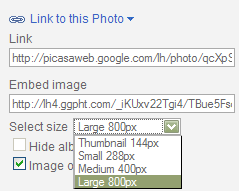

ANSWER
The url includes a folder directory indicating size.
ie /s800
I changed that to /s1600
and it worked to get a 1600x image.
That's as big as Picasa goes.

See also:
Blogger Forum

Photobucket free image hosting. Tested it. My homemade background is only 800x533, even though my original was 1800x1200.

ANSWER
Now Photobucket's free account says 1024x is the limit. I'm only getting 800x maximum width on my images when I view and save, and I don't know why.
The 800x looks okay on my 17 inch 1024x768 monitor.

PLUGIN NOTE:
Mehdi and MuRa plugins are FREE. Google it. Mehdi is still around. I'm not sure if MuRa is, though.

But there are other free plugins that can be found to make clouds if you need it.
I think Photoshop already has a cloud generator.

Also, plugins will work in free GIMP and free IrfanView image editors.
(IrfanView does NOT have a layers feature, though.)

Editing CSS in the Template Designer

It APPEARS easy (lol) to tweak the CSS code in the Template Designer.
I got the blockquote code from my old template and pasted it into the Advanced, Add CSS section.


That worked.

BUT
Tried that with Table coding and it messed up my sidebar.
(Must have Table code formatting in my double column sidebar.)
So I'm leaving Tables alone, for now.
I don't use them much.

In the Background section, under image, there are tons of free images to use.
I'm wondering if there are any restrictions on use?
For example, I might want to change the color of the image or maybe edit some other part of it.

Background image filesize limit is under 250K (see link below).
That can be pretty high compression (low quality) depending on the image used.
I tested one of the texture images (blue one 183KB).
Colorized and resaved.
Filetype jpg compression was about 40-45 in Paint Shop Pro 9.

I think it would be easy enough to substitute your own custom image if you made it the same dimensions and kept it under 250K?

I tried the instructions at the link below. That DID NOT work. Just ignored it.
So, I edited the html. That worked. I don't know if that's a good way to do it or not, though.

LINK:
Editing CSS in the Template Designer

On my old template it used to be really difficult to change the colors in the main posting area.
But with this new Template Designer, it is easy to change the colors.
I'm loving that.
I could change my template every week, just for fun.
I haven't had much trouble switching templates.
But, I would definitely play with that on a test blog FIRST, instead of risking a mess on my main blog.

AND that depends on how much customization you want to do. If you stick to what Blogger offers you, no problems. But is you want to use your own background images and use your own custom coding for things like tables, it's going to be much more difficult.

Saturday, June 12, 2010

More Code Tests

This is my inline highlight code.

Big gold round bullet code I used.

Blockquote looks like this in new template:
A true friend is someone who thinks that you are a good egg even though he knows you are slightly cracked.—Bernard Meltzer

Inline Code:
&#8220 = left double quote
&#8221 = right double quote
&mdash = long dash
font-size = 175% on quotes only.

Tables look like this in new template:
Table1 Code Test
H1C1H1C2H1C3
R1C1R1C2R1C3
R2C1R2C2R2C3
R3C1R4C2R4C3

Text Wrap Around Image Test

Should be no border with text wrapping around the image.
Check space between image and text as it wraps around image.
Extra blah blahs
Inline float right.
Should be no border with text wrapping around the image.
Check space between image and text as it wraps around image.

No float specified with this next one.

Blah Blah Blah